Pass › Pass Admin Guide
Auto Check-in Module
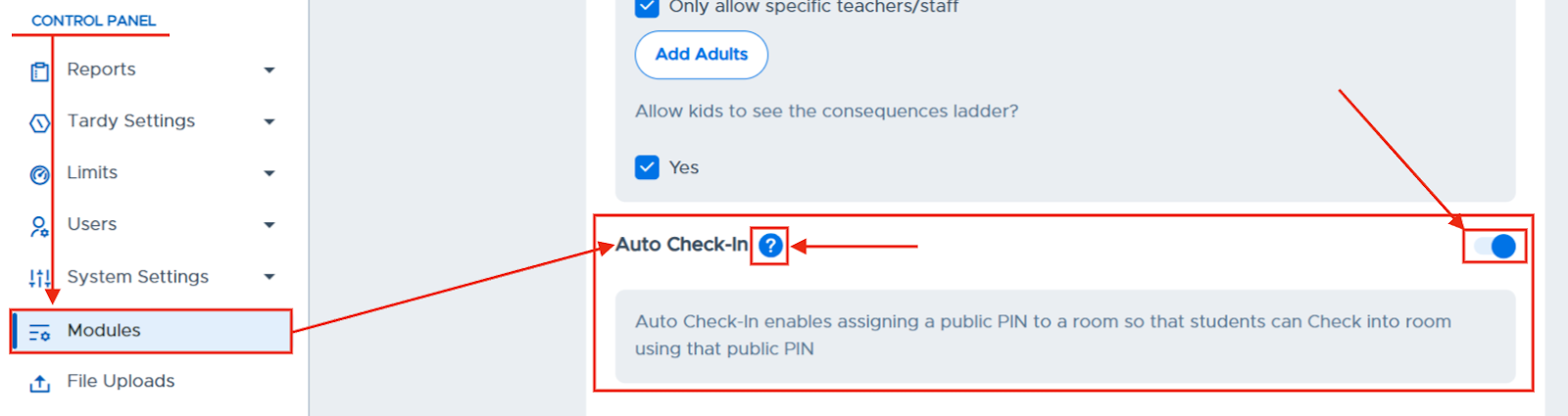
If your school is interested in using the Auto Check-In PIN feature in Pass, please click the switch to the “On” position shown below. This will enable admins, staff, and teachers access to set a public PIN in their profile for any location to which they are associated. Students can then enter this public PIN on their pass upon entering that particular location. This is the only step a Pass Admin needs to take in order to set up and enable this functionality in the system.