Classroom › Classes
Chat
Two-way chat is available between teachers and students while class sessions are active.
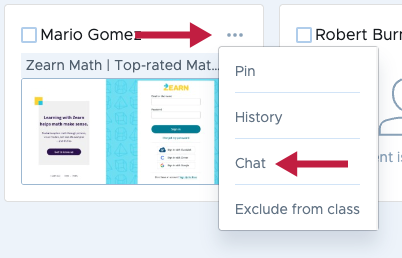
To start a chat, click the student options menu in the upper right corner of the student card, and then select Chat.
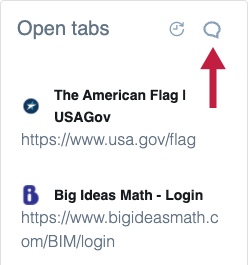
A chat bubble icon is also available from the right hand sidebar of Detail View.
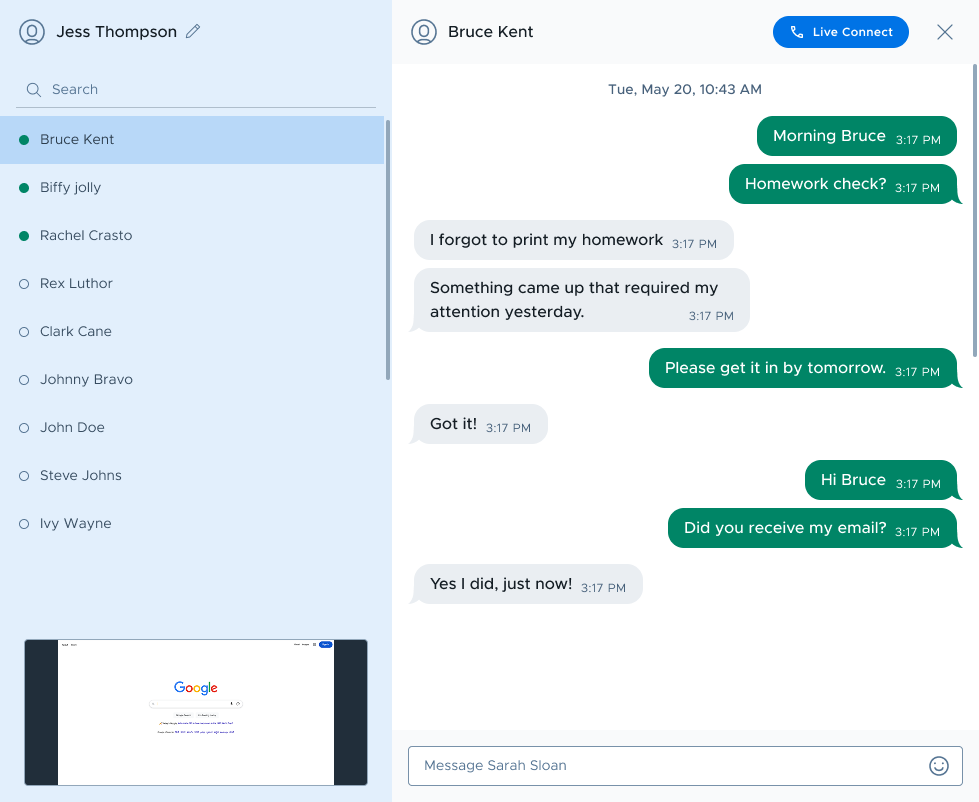
Within the chat window, a teacher can use the student list on the left to switch between chats with any student in the class. Press Enter to send a message. Teachers can change their chat display name by clicking the edit icon beside their name.
If a teacher recieves a chat message from a student, the chat icon in the bottom right corner of Classroom interface will show a notification dot.

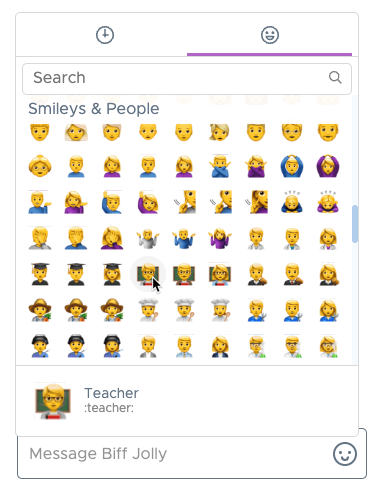
When chatting with a student, you can click the emoji icon to quickly access emojis.
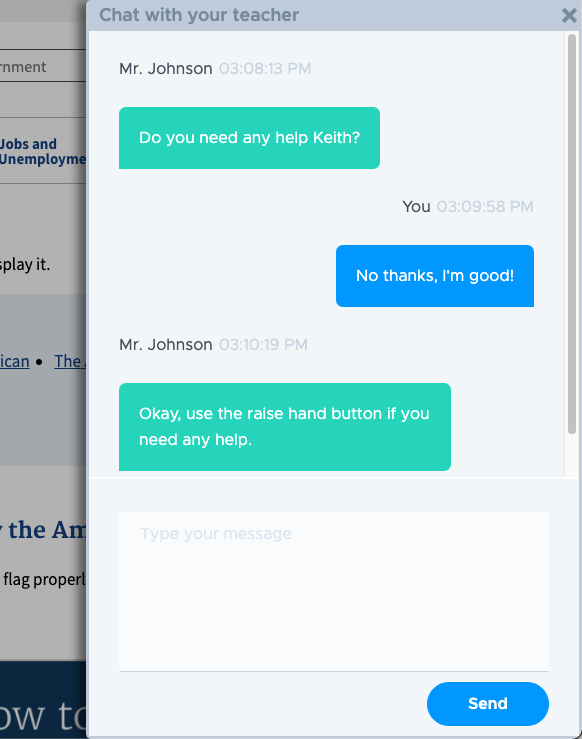
From the student's perspective
When a student recieves a chat from a teacher, the chat window will automatically open on their device.
Viewing past chats
Chat history is recorded and available for review from the Session History tab of on the Classes menu. Click on any past class session, then click on Chats. Click any student from the list to view the chat transcript.
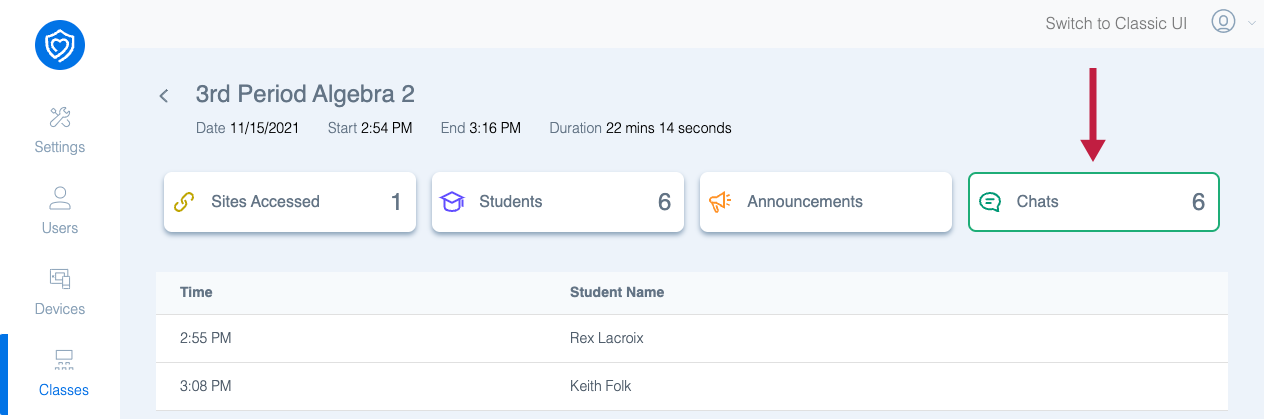
Past chat transcripts can also be accessed by going to the Users menu, then selecting the Rostered Students tab and clicking a student, then the Chats tab.
From this view, you can click the printer icon to print the chat transcript.
Initiating chats as a student
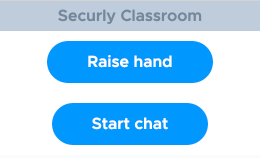
If teachers have enabled the option Allow students to initiate chat in the class options, students will be able to start a chat with the teacher by clicking the Securly Classroom extension icon to the right of the address bar, then selecting Start chat.