Aware › The Activities Report
Scheduling Activity Reports
Follow the steps below to schedule activity reports:
-
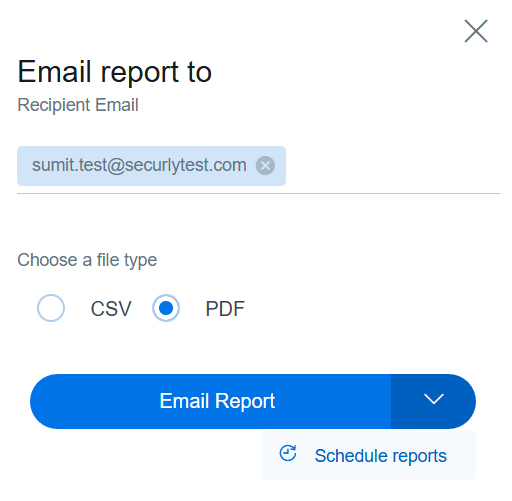
Click on the email action button and then use the dropdown button beside it.
-
Enter the recipient's email address and then click on Schedule Reports from the dropdown menu.
-
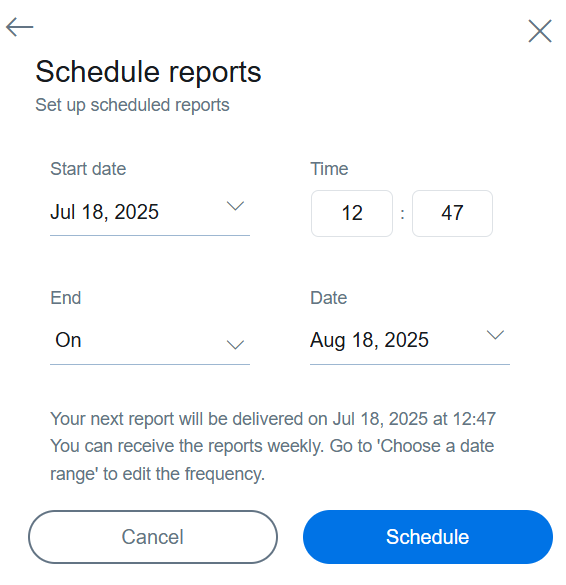
Select the start and end date for the reports, as also the time when they should be delivered. Reports will be delivered weekly during that period.
-
Click the Schedule button to complete the process. You can review your schedules or delete them at any time by visiting Settings > Scheduled Reports.
The report will be emailed to the recipients on the specific date you selected and will display activities up till the previous date irrespective of the delivery time you may have selected for your report.