Classroom › Settings
Organization Calendar
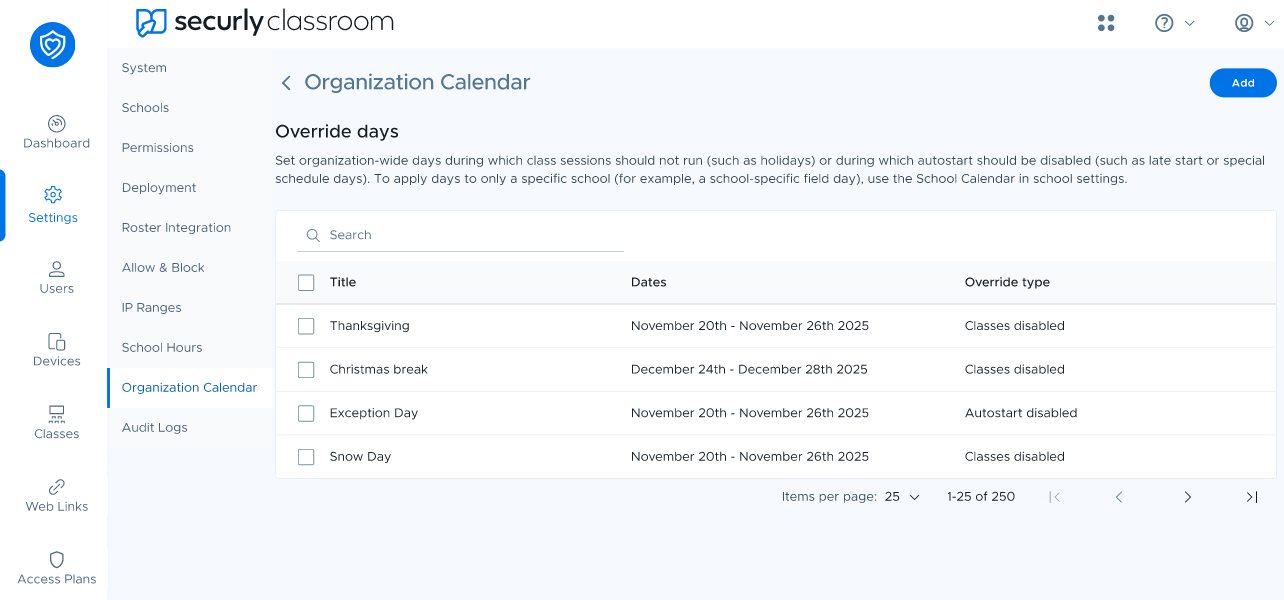
The Organization Calendar lets district admins create override days that apply to every school in the organization. Use override days for holidays, scheduled breaks, testing days, weather closures, professional-development days, late starts, early dismissals, or any other date when normal Classroom scheduling should change.
Choose the right override option
Disable class sessions: Prevents class sessions from running during the selected date range. Use this for holidays, school closures, scheduled breaks, or testing days when teachers should not run Classroom sessions.
Disable autostart: Prevents scheduled classes from starting automatically, but teachers can still start class sessions manually. Use this for late starts, early dismissals, modified schedules, assemblies, or other days when the normal automatic schedule should not run.
Add an organization-wide override day
Open Organization Calendar.
Select Add.
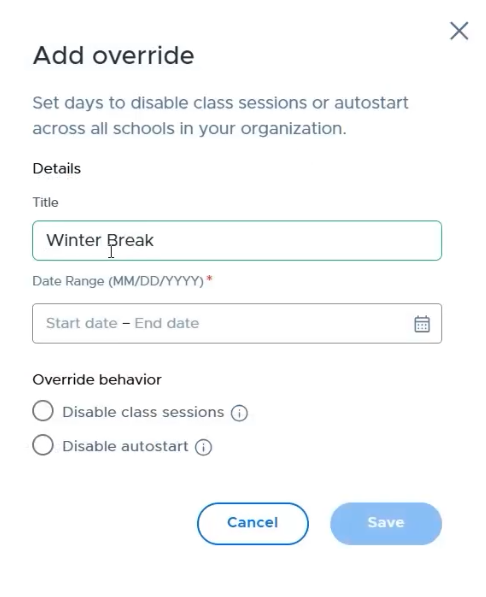
Enter a descriptive title, such as “Winter Break,” “Testing Day,” or “Two-Hour Delay.”
Select the start and end dates.
Choose Disable class sessions or Disable autostart.
Select Save.
Organization Calendar and School Calendar
Organization Calendar overrides apply to all schools. Schools inherit these district-wide override days and cannot edit them.
If an event affects only one school, add the override from Schools instead: select the school, open the School Calendar tab, and add the override there. School-level overrides are often the better choice for a testing day, closure, or modified schedule that does not affect the entire district.
Testing days
For a testing day when teachers must not run Classroom sessions or view student screens through an active session, choose Disable class sessions. Add the override in the Organization Calendar only when it applies to every school; otherwise, add it to the affected school’s School Calendar.