Reveal › Screen Time
Screen Time Dashboard
The Screen Time dashboard gives district and school administrators a clear, drill-down view of how much active time students spend on their devices — and how that time breaks down across approved and subscribed applications. It is a focused, screen-time-first view built for the district-to-student hierarchy.
To access the dashboard, click on Screen Time from the main navigation menu on the left.
Need support onboarding? Sign up for an group deployment session here.
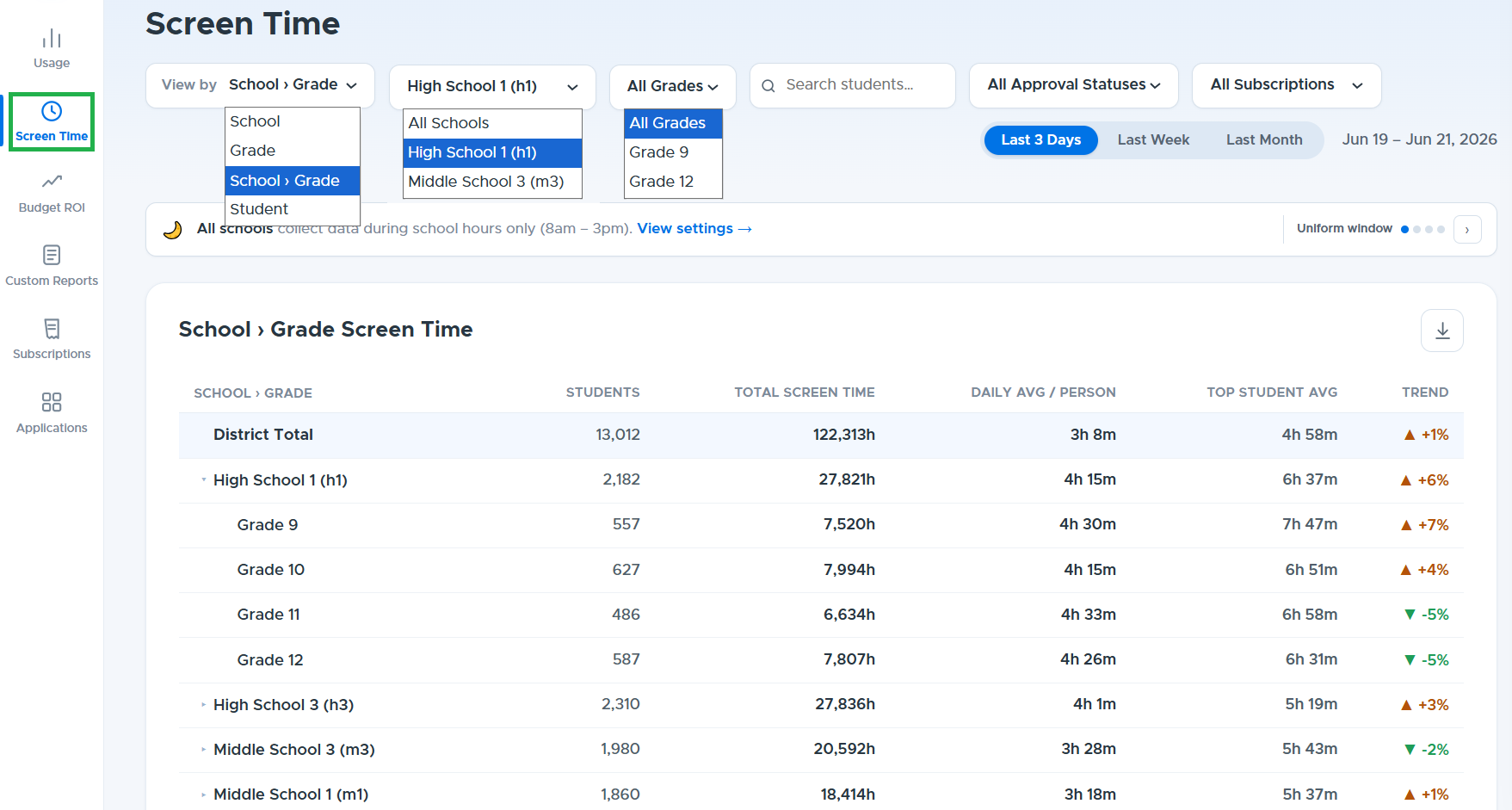
The Screen Time dashboard tracks:
Total screen time — active device time across the selected scope.
Approved-application screen time — time spent in applications classified as approved.
Subscribed-application screen time — time spent in applications the district subscribes to.
Daily averages for total, approved-app, and subscribed-app screen time.
Top-student average — the highest individual student average within each aggregate.
Student count and period-over-period trend for context.
You can customize the screen time data using the top filters:
View by: Group data by School, Grade, School > Grade, or Student.
School & Grade: Narrow down results to specific schools or grade levels.
Search Students: Enter a name in the search field to pull up data for an individual student.
Approval Status & Subscriptions: Filter by app approval states or specific software subscriptions.
Date Range: Select preset timeframes (Last 3 Days, Last Week, Last Month).
You can also use the download button in the top right above the table to save the displayed data as a CSV file.
Role-based access
Access to screen time data is role-aware to keep student data appropriately scoped:
Administrators can view district-wide and school-level data.
Tech Coaches are limited to their assigned schools and cannot select "All Schools."
Teachers and students are not authorized for the screen time view.
Student-level detail becomes available after selecting a school.
All schools or an individual school