Pass › Pass Admin Guide
Interacting with Student Passes as a Substitute
Substitutes can interact with student passes in two ways: on the student’s device or on a kiosk. Either way, they will enter their PIN.
Approving a pass using the student's device
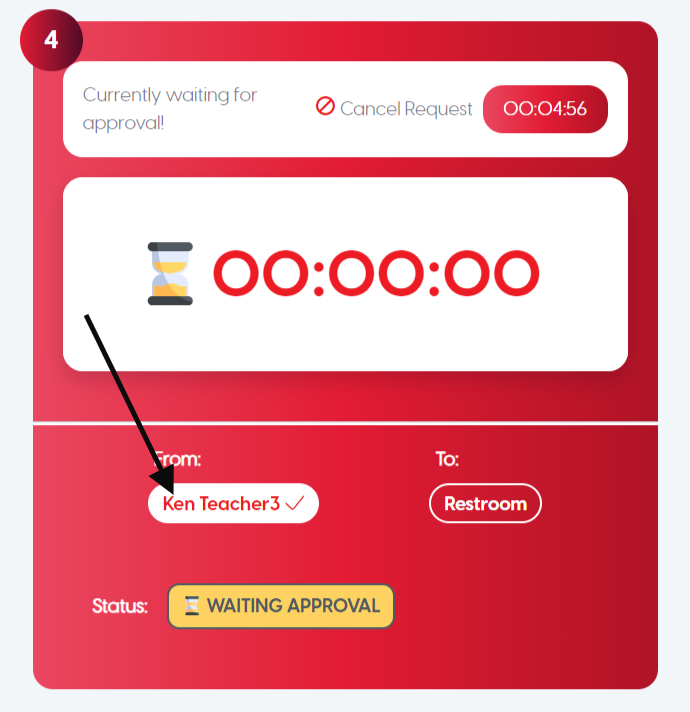
Click on the teacher's name on the student's device.
Enter your PIN and click APPROVE. The student may now leave the classroom.
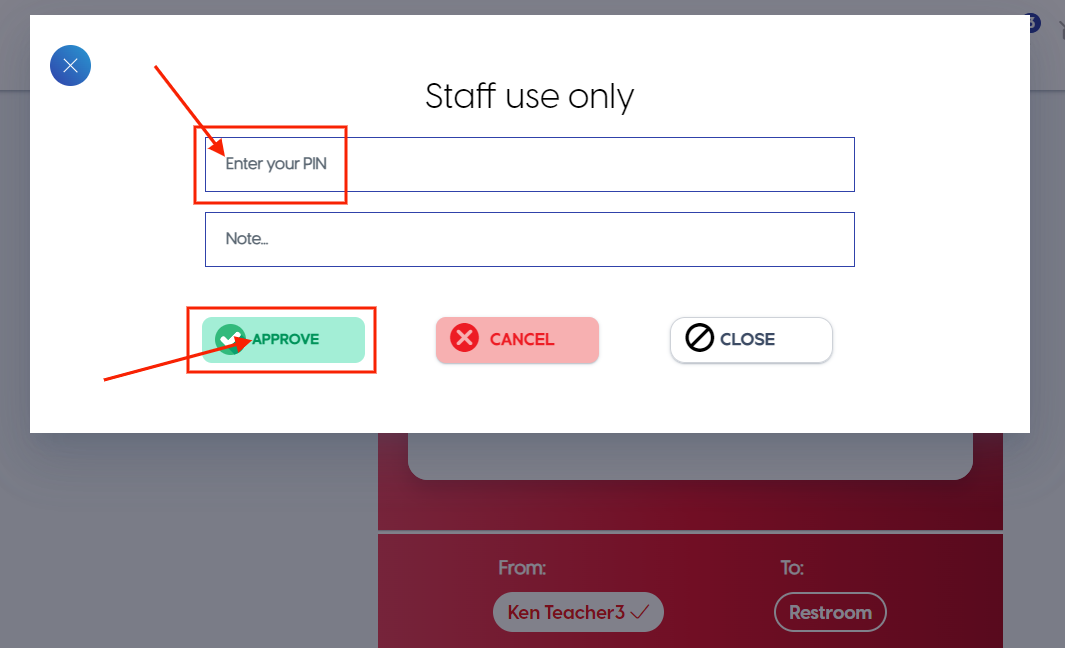
Pick up the student’s device, enter your PIN, and hand the device back to the student. (This process will help to keep your PIN secure.)
Ending a pass using the student's device
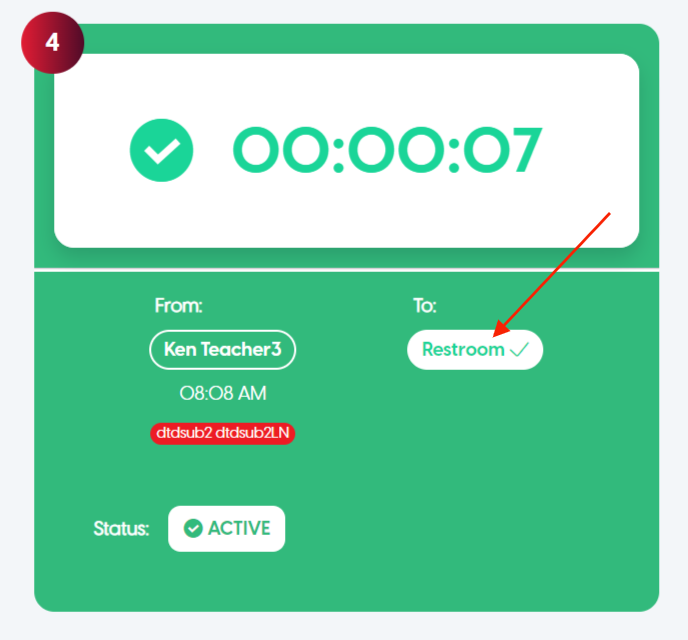
When the student returns to the classroom, click on the location.
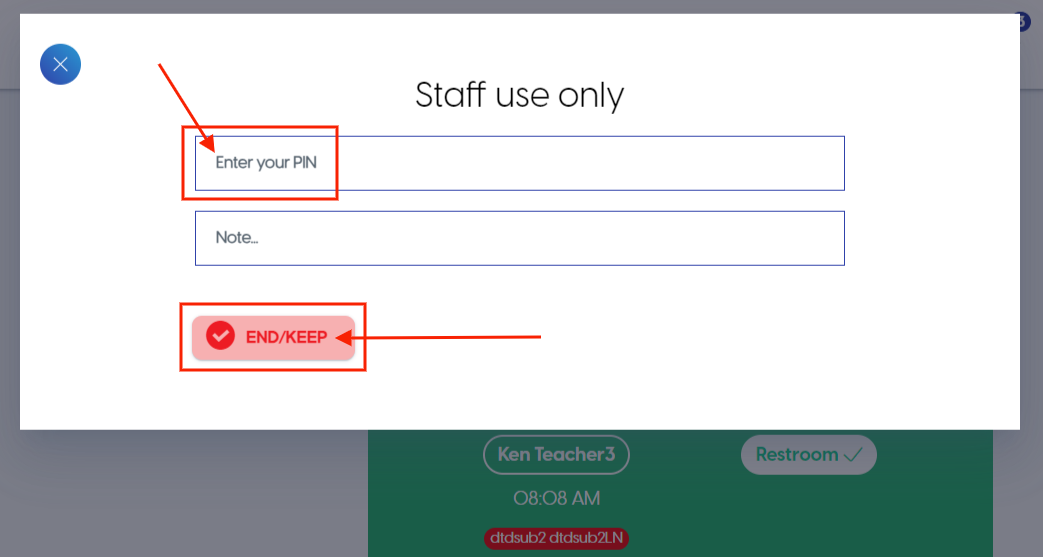
Enter your PIN and click END/KEEP.
Approving a Pass using Kiosk
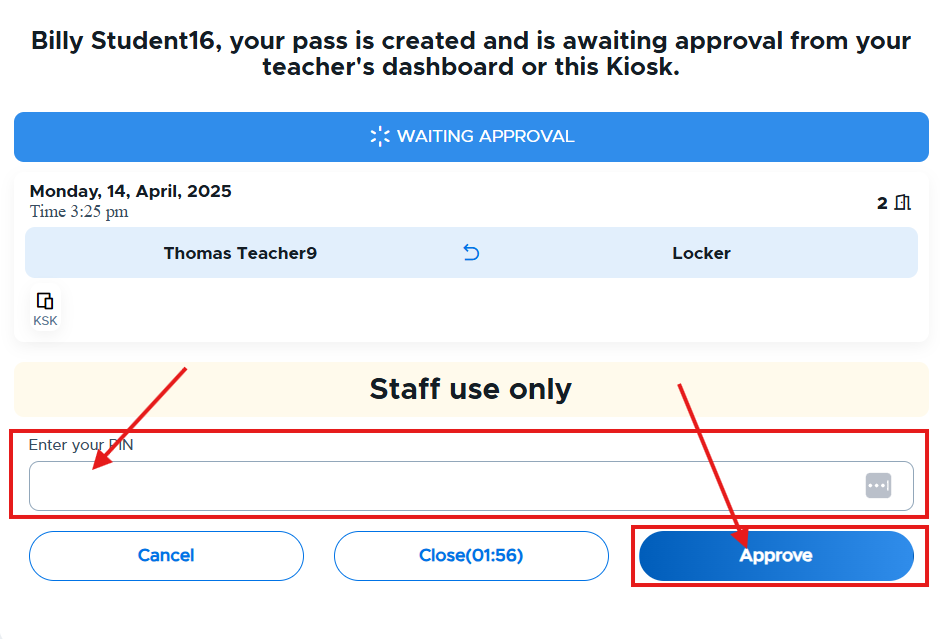
If approving a student’s pass from a Kiosk, the sub will enter their PIN and click Approve after the student has entered the appropriate information.
Directions for Substitutes
Here is a document template of Directions for Substitutes. This document will open in a new browser tab. Copy and paste this information into a document for your school. If you prefer to request a different document format from us, please contact the Pass Help Desk.
Remember:If a substitute has a school email address and/or you want the substitute to have full teacher access to Pass, add them through one of the other methods mentioned in the Rostering Users section.