Pass › Pass Admin Guide
Adding Substitute Users
The primary substitute workflow in Pass is for an Admin to create a substitute account and provide the substitute with a unique PIN to enter on a student’s device in order to approve a pass. The substitute does not have full access to Pass or the dashboard; they will NOT log in to the system.
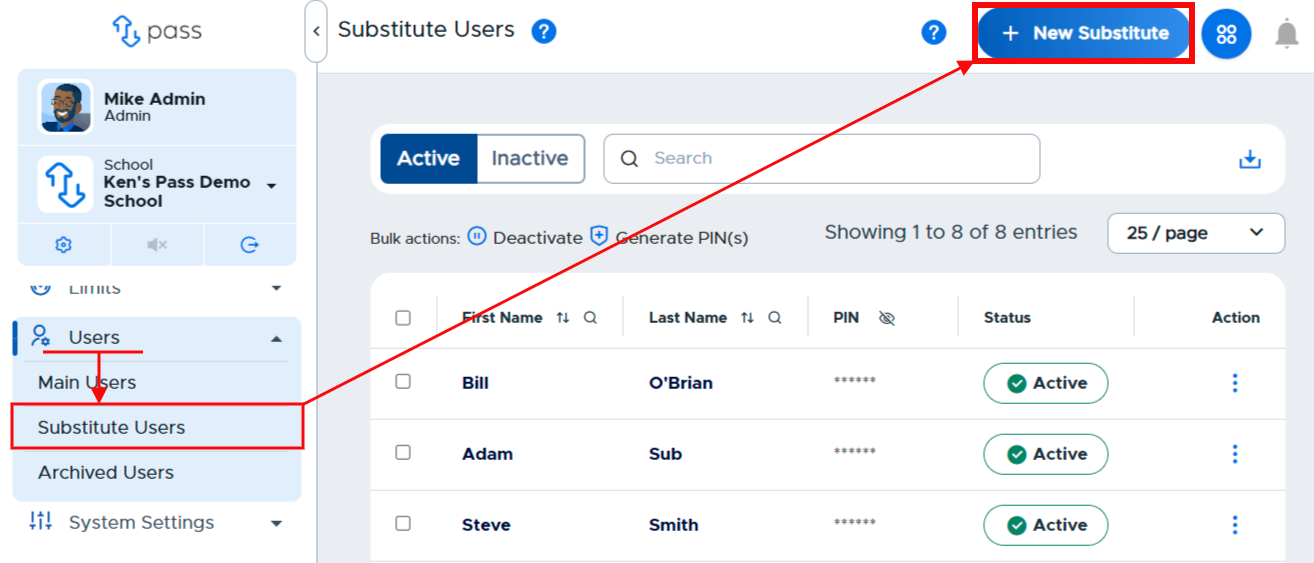
In order to add a Substitute, go to the Control Panel menu, click on Users > Substitute Users. Then, click the blue “+ New Substitute” button in the upper right corner.
Enter the corresponding information. Click Create when finished.
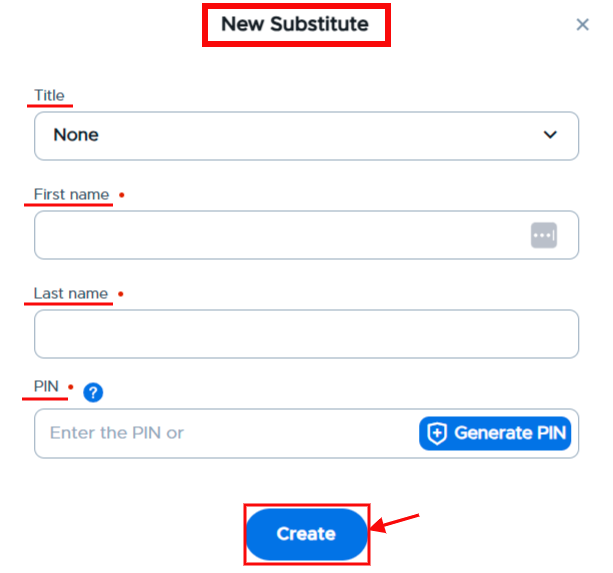
Substitute accounts can be specific to a person or could be generic and reused with different subs that work in your building.
You can choose to enter a PIN or have the system generate a PIN for the sub account. Setting your own PIN may be more favorable and allow you to keep the PIN simple for the sub to remember.