MDM › Managing Content
Scheduling Screen Layouts
Screen Layouts can be scheduled to automatically activate on one or more device groups from the Screen Layouts Schedule tab.

To add a scheduled screen layout activation:
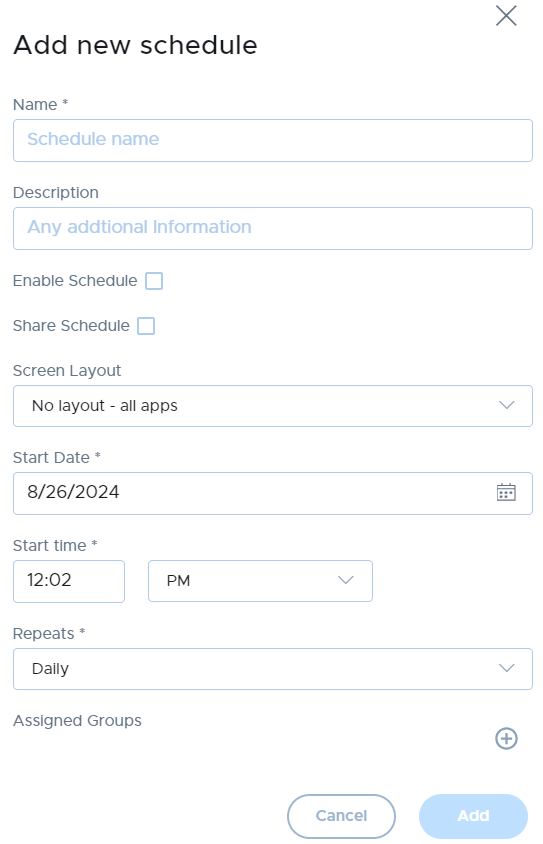
- Click the Add Schedule button.
- Fill the form and click the Add button. You can set the scheduled task to repeat daily, weekly, weekdays, or monthly at a fixed time. You can also choose one or more device groups for the selected Profile to be activated to by click on the '+' icon.
To delete a scheduled screen layout task:
Select the schedule(s) to delete and click the Delete button.

To temporarily prevent a scheduled screen layout from activating:
Select the schedule(s), then click the Disable button. Use the Enable button to re-enable the task later.

To force a scheduled task to run immediately:
The Run Now button will allow you to force a task to run immediately, even though it's not yet the scheduled time. This will activate the configured profile on the configured device groups immediately.