Classroom › Classes
Monitoring Student Screens with the Thumbnail+Tab View
The Thumbnail+Tab view is the default view teachers see. This is view displays icons for each open tab on the student's device below the thumbnail.
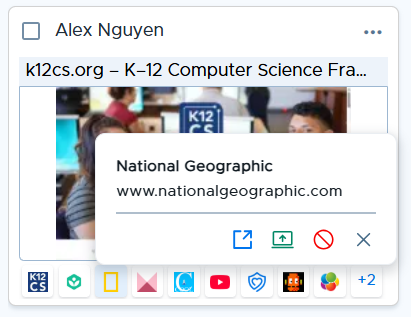
Clicking on a tab icon will reveal the usual actions:
Visit the site on your device
Switch the student to that tab
Block the site (adding the entire domain to the currently active/temporary access plan)
Close the tab for the student
If there are more tabs than can fit in a row, an overflow button (+X) indicating the total number of additional tabs will appear, linked to the student’s Detail View which shows the full tab list.
Zooming out to the smallest size in the Thumbnail + Tab view hides the tab icons so more students fit on screen, and zooming in again brings back the tab icons in the thumbnails.