Filter › Managing Users
Faculty Groups
In order for student activity data to be actionable, it should be accessible to the right people, including teachers, counselors, parents, etc. The school admin, therefore, has the ability to create faculty groups to delegate the monitoring of activity and allow users access to student activity reports and email alerts.
Only a Securly admin has the authority to create, edit, and delete Faculty Groups. Faculty groups can not currently be cloned or renamed.
Creating a new Faculty Group
-
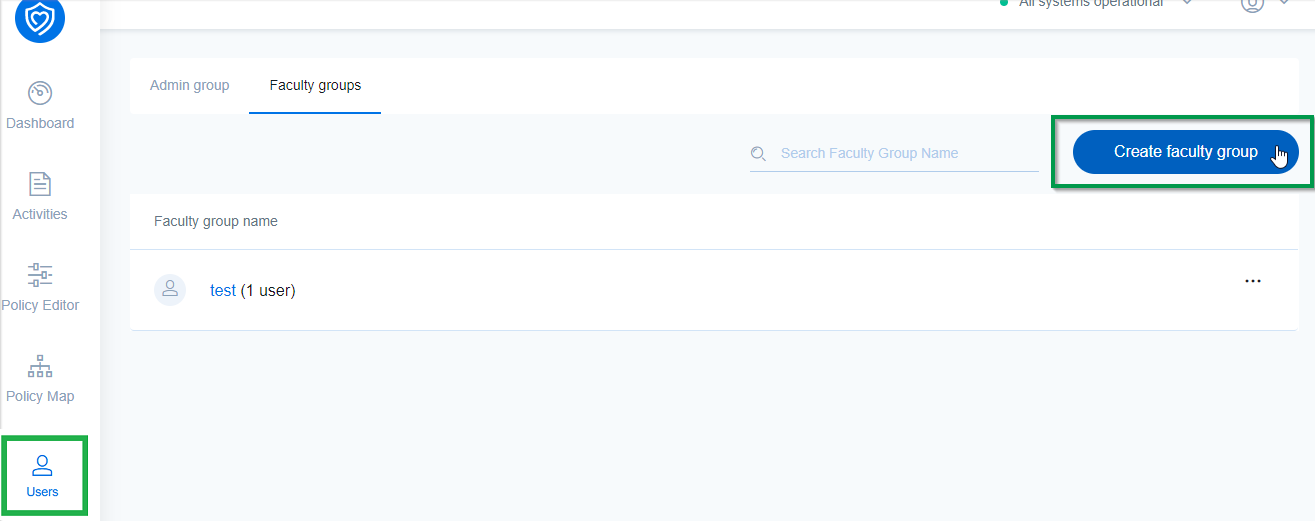
Navigate to Users > Faculty groups.
-
Click on 'Create faculty Group'.
-
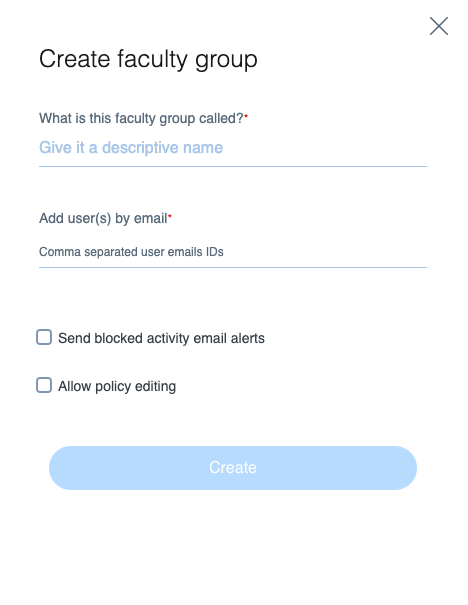
In the sidebar pop-up, enter the group name and the email(s) of the teacher, staff member, etc. separated by a comma. You need to enter at least one email to create a group.
-
Select the checkboxes to send blocked activity alerts to Faculty Group users and allow them to edit policies if required.
-
Finally, click Create. Once a new group has been created, you can:
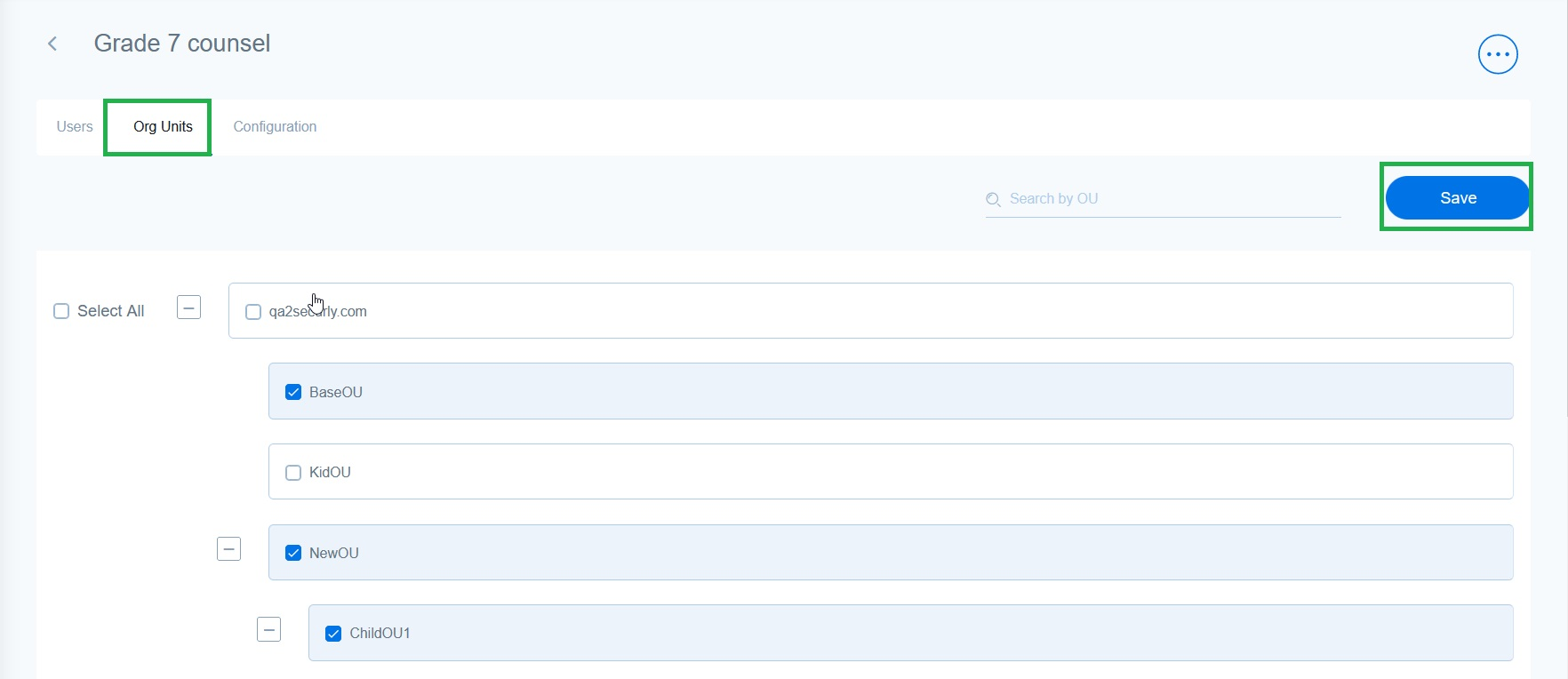
Add permission to view OUs
Once a new group has been created, you need to assign OUs to the group. Faculty group users will be displaying reports only to students belonging to the selected OUs.
Add users to a group
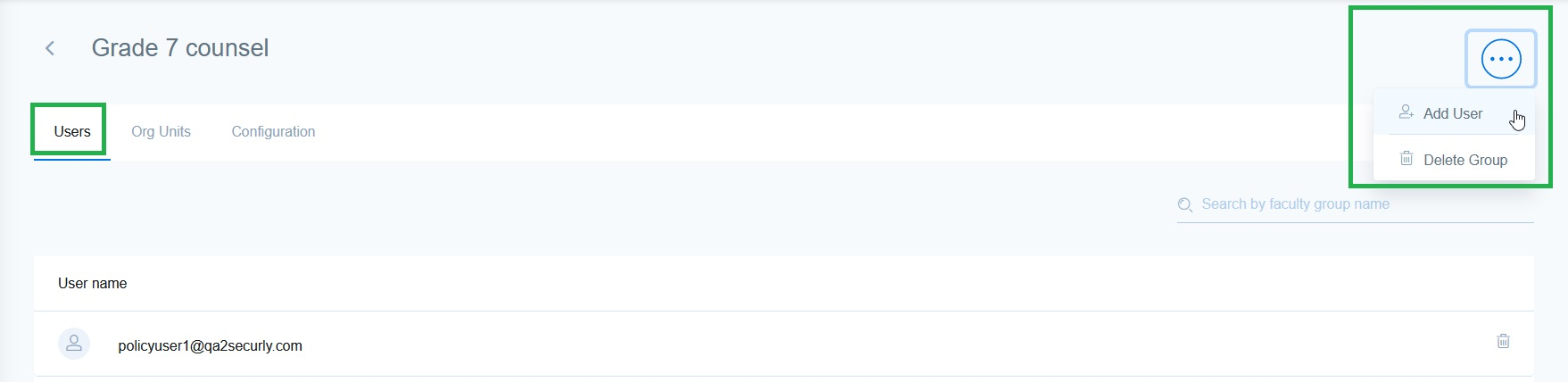
To add a staff member or teacher to an existing group, click on the three-dot icon (...) on the right side of the screen, then click on 'Add User'. A pop-up will be launched where you can enter the email(s) of the teacher, staff member, etc. separated by a comma.
Managing configurations for a group
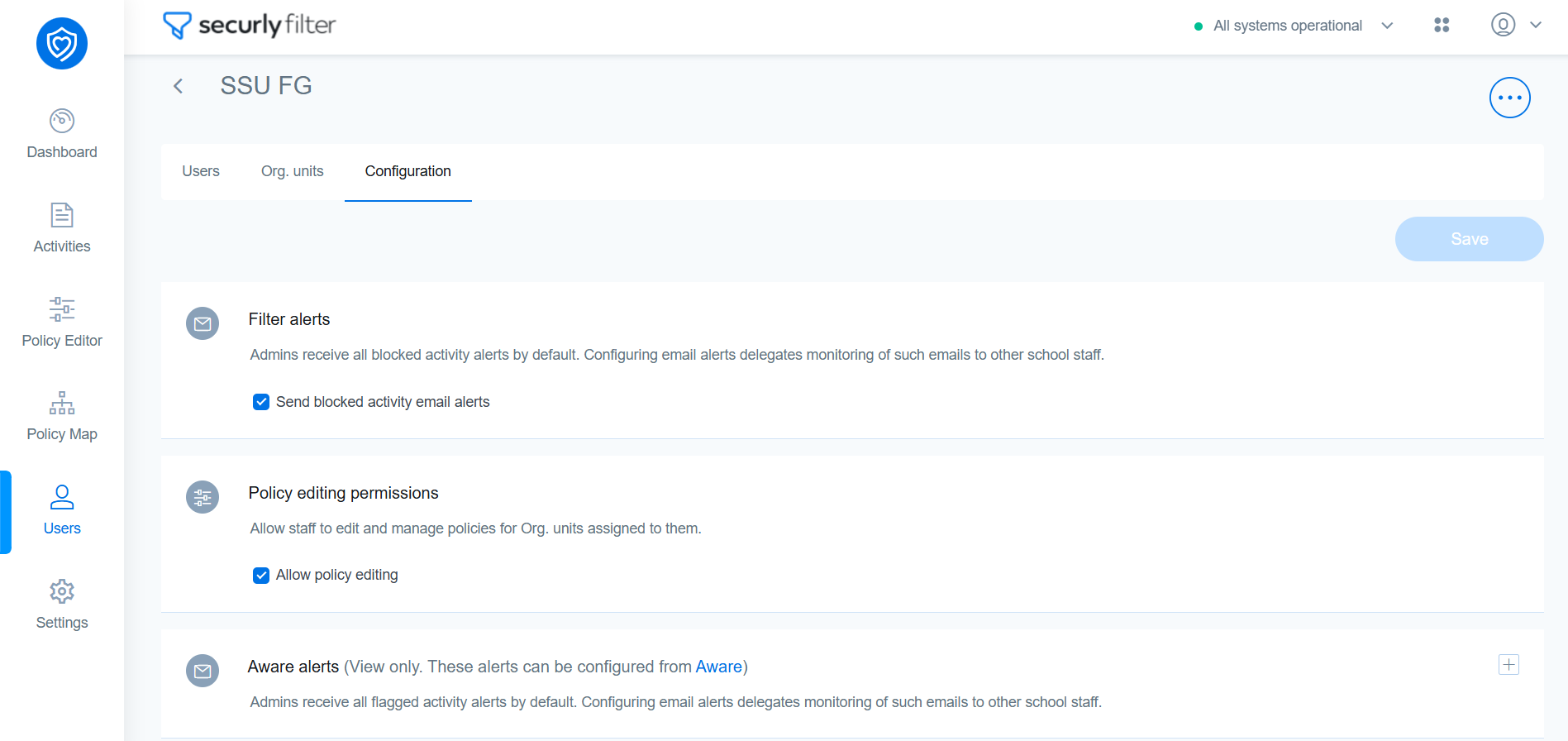
It is possible to change policy editing permissions for the faculty group, as well as blocked activity email alerts they receive by using the relevant checkboxes under the Configurations tab.