Filter › Deploying Securly Filter
Deploying SmartPAC (User-injection)
This section of the guide covers SmartPAC configuration via user-injection:
Setup for iPads
iPads are commonly used in lower grade levels due to their intuitive design and touchscreens, which enhance classroom learning. However, authentication remains a challenge, especially for younger students. Logging in for internet access can be difficult, and workarounds like IP-based policies or having teachers log in each student are not ideal. User-injection for SmartPac resolves these issues.
User-injection method allows IT admins to add a URL parameter to the SmartPac via MDM (for iPads) or GPO (for Windows). This automatically authenticates students, giving them internet access while still tracking their browsing activity for security and monitoring purposes.
NoteUser-injection isn't available by default. Contact Securly Support to enable it for you.
Prerequisites
- Confirm if MDM supports variable payloads with iPad configuration profile. The variable will be used for SmartPac to inject the username. For example, Securly MDM uses the “$email” variable to pass the email address. (See the list of variables for other MDMs below.)
- Make sure the MDM has an email address associated with each user.
Generic Examples Using Securly MDM Payload Variable
Format: SMART PAC URL + &user= + MDM variable (in lower case)
Example: https://www.securly.com/smart.pac?fid=admin@securlyqa1.com&user=$email
Breakdown
Smart PAC URL: https://www.securly.com/smart.pac?fid=admin@securlyqa1.com
Constant variable used by Securly: &user=
MDM Variable: $email (lower case)
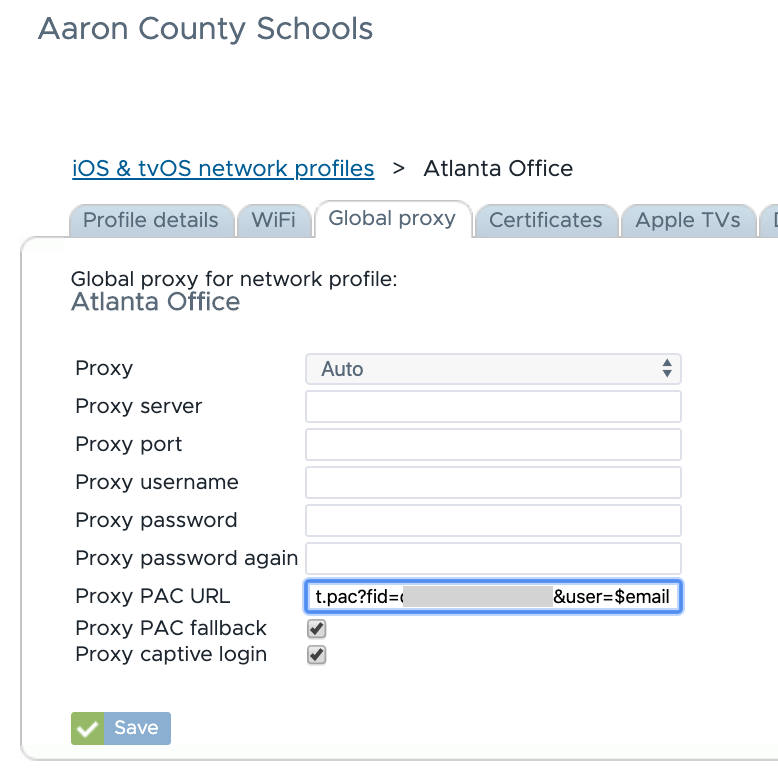
On your iPad, the PAC URL will display the actual user's email of the user assigned to the iPad.
Setup for Windows
For Windows, we can pass the logon user. This is great for shared Windows Labs to filter and report each student's activity when they are logged in.
Format: https://www.securly.com/smart.pac?fid=securly@schooldomain.tld&user=%USERNAME%@schooldomain.com
NoteIf you are on Windows build 1903, you will need to set the PAC URL to HTTP, not HTTPS. You can refer to this forum to learn more. It is speculated Windows may revert to this change and once again support PAC URLs over HTTPS. If they do, we will update this article.
Setup for shared accounts
A shared account can also be used in the SmartPac URL. Shared accounts must exist in Google Workspace or AD/Azure to auto-authenticate with Securly. Using a shared account can be done if the MDM solution does not support using payload variables.
Format: https://www.securly.com/smart.pac?fid=securly@schooldomain.com&user=sharedaccount@schooldomain.com
iPad configuration profiles
- Securly MDM : $email (lower case)
- Jamf : $EMAIL
- Meraki : $OWNEREMAIL
- Jamf School (formerly ZuluDesk) : %Email%
- Lightspeed : %email%
- Filewave : %email%
- Mosyle : %Email%
- Airwatch MDM : {EmailAddress}
- Windows : %USERNAME%@<schooldomain.com> (Eg: %USERNAME%@k12publicschools.org)
- Others : Try %email%