Classroom › Classes
Monitoring Students with Tab View
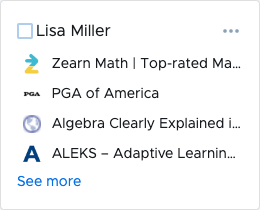
Tab View allows monitoring of students by showing a list of currently opened tabs on student devices.
If you are in Thumbnail View and want to switch to Tab View, click the Tab View icon in the upper right.
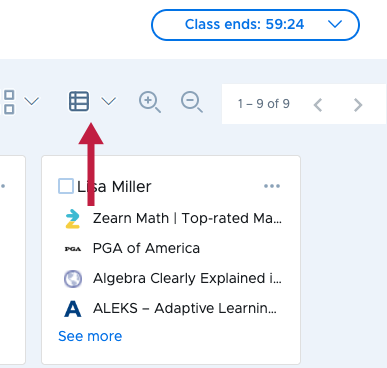
Securly Classroom sends a request to update the tabs list about once every 4 to 6 seconds. However, if the device has recently been restarted or asleep, it may take up to 2 minutes for it to begin responding to requests.
You can hover over a tab to see its full URL. Clicking a tab gives you four options:
Visit the site on your device
Switch the student to that tab
Block the site
Close the tab for the student
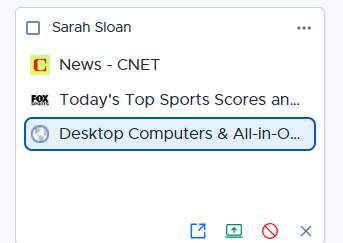
If you have an access plan active and choose to block a site, it will get added to the plan. If there’s no active plan, the site will be closed on the student's device and blocked for all students for the remainder of the class session.
When a student has more tabs open than can be listed in the student's card, you will see a See more link in the bottom left of the card that will open Device View which shows the full tab list.