Pass › Pass Teacher/Staff Guide
Student Appointment Requests
If enabled by your admin, students can also make appointment requests to see a specific admin, teacher, or staff member.
Students can have up to 5 appointment requests outstanding at one time. This is not a weekly limit, and it is not a quota set on the Limit Student Pass screen. The student Create Pass screen shows it as Appointment Pass - 5 Request(s) Available.
If a request is pending, missed, or confirmed, the student does not get that request back until the day after the appointment.
If the student or the teacher cancels the request, the student gets it back immediately.
A request can be made up to 30 days in advance, and it must start at least 30 minutes after it is created.
For the student-facing details, see Important sAPT Information - Students.
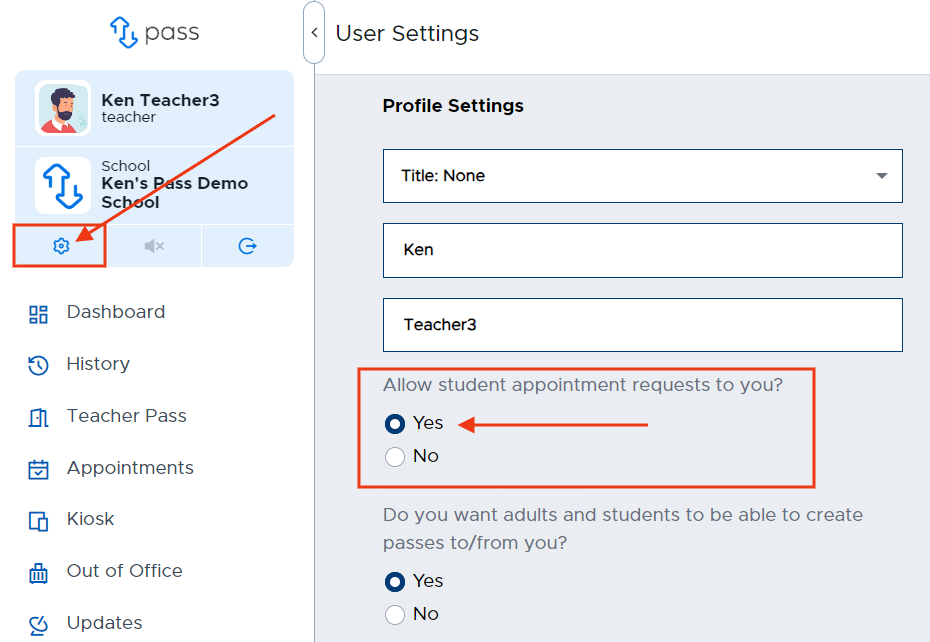
To allow students to make appointment requests to you, click on the User Profile gear underneath the name of your school and select Yes to the question “Allow student appointment requests to you?” Click Update before leaving the screen.
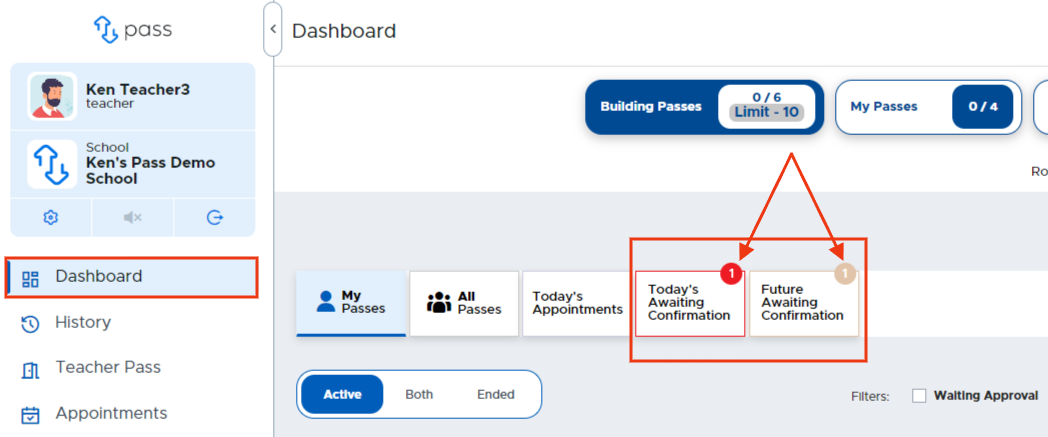
When a student creates an appointment request to you, a number will appear in the upper right corner of either the “Today’s Awaiting Confirmation” or "Future Awaiting Confirmation” tab on the Dashboard.
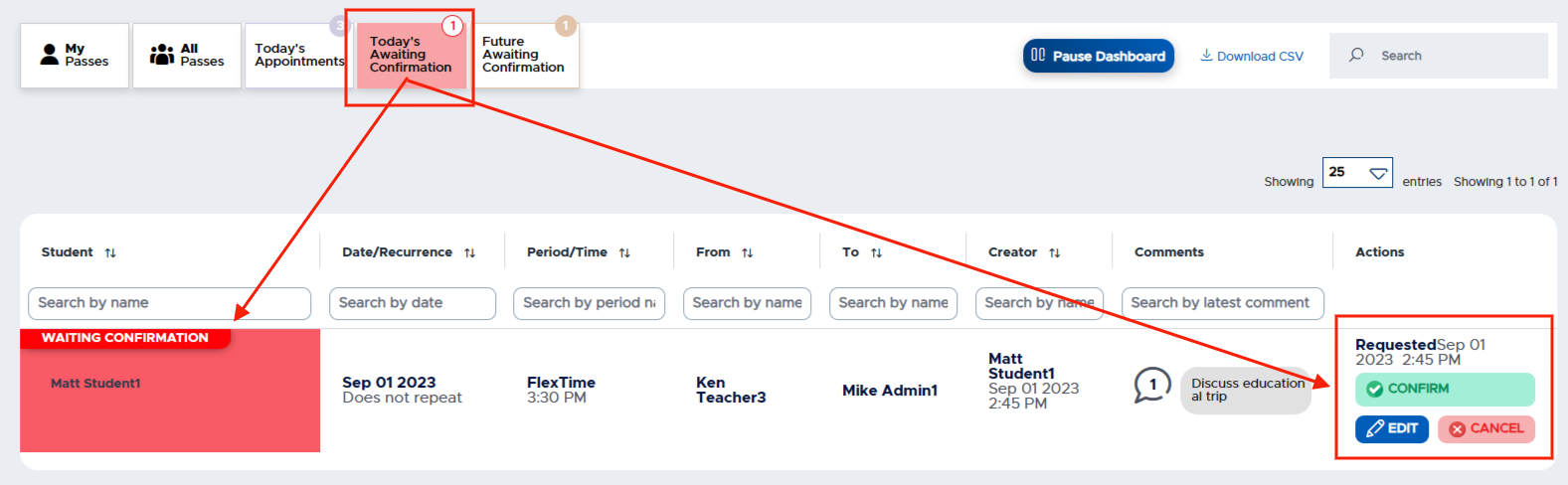
Click on the tab to see the appointment request. You then have three options:
Option 1 - Edit the request and send the student a comment
Option 2 - Cancel the appointment request
Option 3 - Confirm the appointment
IMPORTANT NOTE:
If you do not confirm the request, it will not become a pass and will be noted in the system as a MISSED REQUEST.
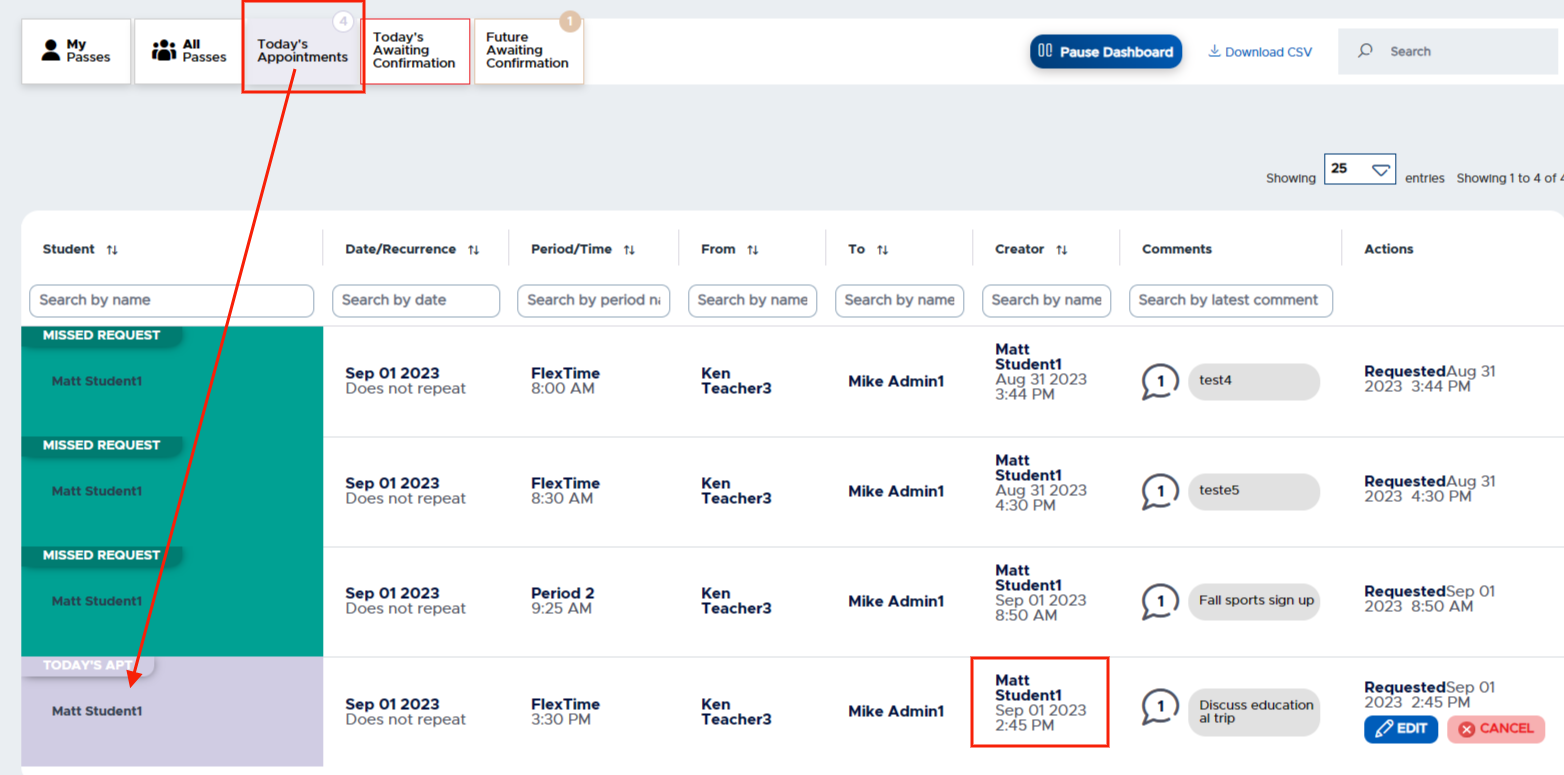
Once Confirmed, the pass will appear on the “Today’s Appointments” tab and function as any other appointment.
Additional Info:
The student will be alerted to any action that you take on the appointment request. As shared earlier, if you do not take action on a student’s appointment request, it will not become a pass and will be recorded as a MISSED REQUEST in the system.
If a student makes an appointment request to a location with which an adult is not associated, it will not be confirmed. If an adult then associates with that location, the student’s request will appear on that adult’s Dashboard under the “Today’s Awaiting Confirmation” tab or “Future Awaiting Confirmation” tab.