Classroom › Classes
Scheduling Classes
Classes can be scheduled to automatically start.
In order to schedule classes, the administrator must enable class scheduling from the System submenu of the Settings menu with the setting Allow scheduled class sessions.
When enabled by an administrator, class auto-start options appear on the class edit page.
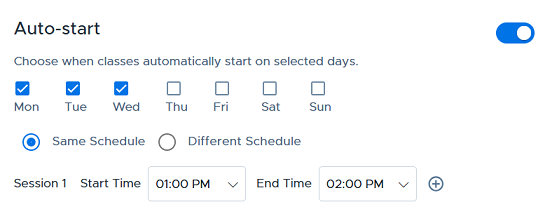
To schedule a class, enable the toggle. You can autostart classes using bell schedules or manually set start and end times for your class.
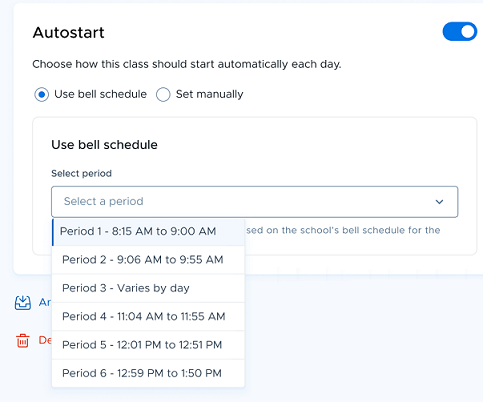
For auto starting classes using bell schedule, simply select the period/block from dropdown menu. These periods/blocks will be pre-defined by the school admin.
If you choose the manual way, just select the days, and set your class to have same schedule or different schedule.
If the class is run at the same time every day, select Same Schedule.
To schedule a class to start at different times or run for different durations on different days, select Different Schedule. The days you pick from are the days of the week — or, if your school has a rotation configured, your school's rotation days (A/B days). See Rotation days (A/B days) below.
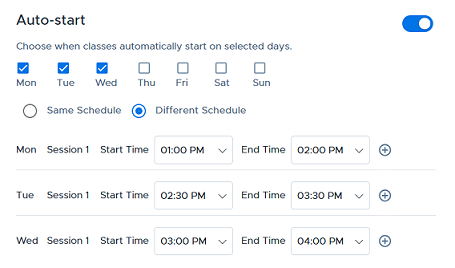
Set session start and end start time for your class and save your changes.
Rotation days (A/B days)
Yes — a teacher can set a different autostart time for A days and B days on the same class. Setting class start and stop times independently on each rotation day is exactly what a rotation schedule is for. For example, the same class can auto-start at 9:00 AM on an A day and at 1:00 PM on a B day.
A days and B days are rotation days. An admin first maps them on the school's Rotation Days tab, where the rotation cycle can be anything from a simple 2-day A/B rotation up to an 8-day rotation, and the day labels can be renamed to suit the school (for example Blue day and Silver day). Once a rotation exists, class scheduling follows the rotation days instead of Monday through Friday.
Teachers can schedule against rotation days with or without a bell schedule:
With a bell schedule: once a rotation is configured, the bell schedule is rotation-day based rather than weekday based, so its periods/blocks already define which rotation days (A, B, or both) a class meets and at what time. The teacher simply selects the period/block from the dropdown.
Without a bell schedule: use manual scheduling. Select the rotation days the class meets, choose Different Schedule, and set a separate start and end time for each rotation day. Choose Same Schedule instead when the class runs at the same time on every rotation day it meets.
Classes on a rotation can still auto-start more than once on the same day — use the + icon to add another session, as described below.
For how an admin sets up the rotation cycle, labels and calendar mapping, see the Schools guide.
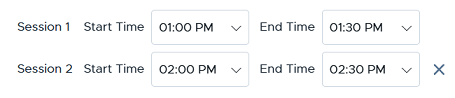
You can also set the class to auto-start multiple times during the same day. This makes it easy to handle classes that have a break in the middle, such as lunch or “specials”, and then return for the remainder of the class.
Click the + icon to add another session for the class.

Set the start and end time for Session 2, and save your changes.
Notes
When scheduling a class, there is no option to exclude absent students from class since the class starts automatically. If a student needs to be excluded, click the menu on the student card and select Exclude from class.
Scheduled classes will run even if that class's teacher is not logged in.
A class schedule will automatically deactivate if the class has zero students or zero teachers.