Create Detentions
Tardy Detention(s) is where a school can build their pre-set detentions by designating a title, description, start time, duration, location, and max capacity.
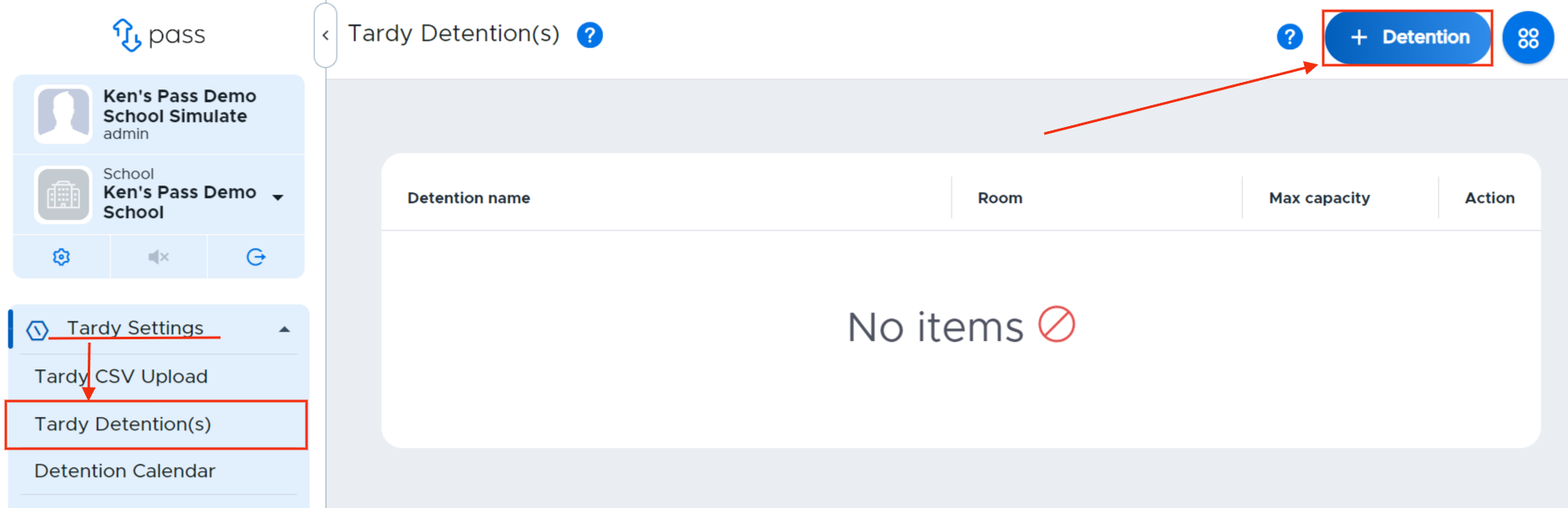
Create Detentions - To build Tardy Detentions, click on Tardy Settings > Tardy Detention(s) > + Detention in the upper right corner. In the pop-up window, create your detention.
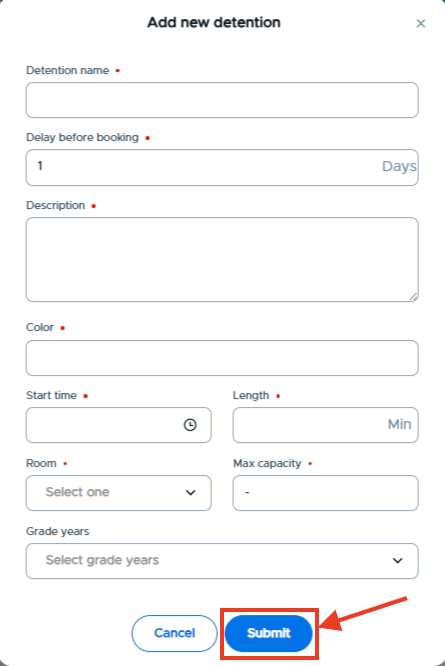
Name the detention
Choose the number of days to delay the student from being scheduled for this detention (optional)
Delay before booking
Provide a description of the detention
Choose a color
Select start time
Add the length of time for the detention
Add the Location or Room where the detention will take place
Add the maximum capacity for that detention
Select the Grad year(s) to which this detention will apply
Click Submit
Delay before booking - This field allows the scheduling of an earned detention to be postponed by the number of days indicated. The default for the “Delay before booking” field is one (1) day.
If a student earns a detention today, they will be scheduled for that detention tomorrow (assuming that detentions occur daily).
If a delay of three (3) days is added when the detention is created and a student earns the detention today, the student will be scheduled for the detention three (3) days from today (A student who earns a detention on 3/1 with a delay of three days will be scheduled for detention on 3/4 - assuming detentions occur daily)
If the detentions have not been added to the calendar, this student’s detention will be listed in "Pending” status until the detention has been scheduled.
The delay will be honored even if there is not a detention available on the exact day to be scheduled. Students will be scheduled on the next available detention after the delay window. Example: You have Saturday detentions scheduled on the 2nd and 9th. A student earns a detention on the 1st. A 7-day delay would normally mean the detention is scheduled on the 8th - but there is no Saturday detention available, so the student will be scheduled on the 9th.
Tip: You can create a room that is specifically used for detentions, for example “Library-Detention”. This way you can run reports on that location vs. “Library”. You can set the Limit Location Max Cap for “Library-Detention as “0” so students could not accidentally create a pass to that location.
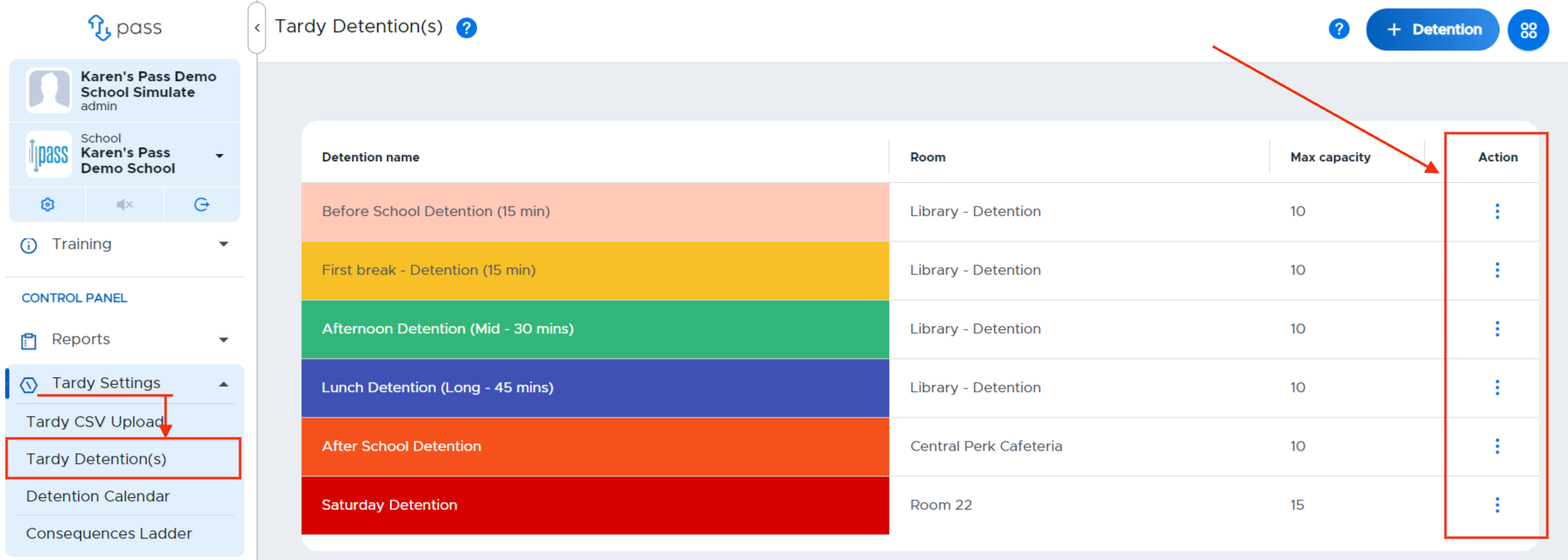
Once you have created a detention, you will see it in a list on the Tardy Detention(s) page. You can then use the three (3) dots under the “Action” column to the right of each detention to edit or delete this detention.