Learn › Troubleshooting
How to Resolve Google Workspace API Access Restrictions That Block SSO
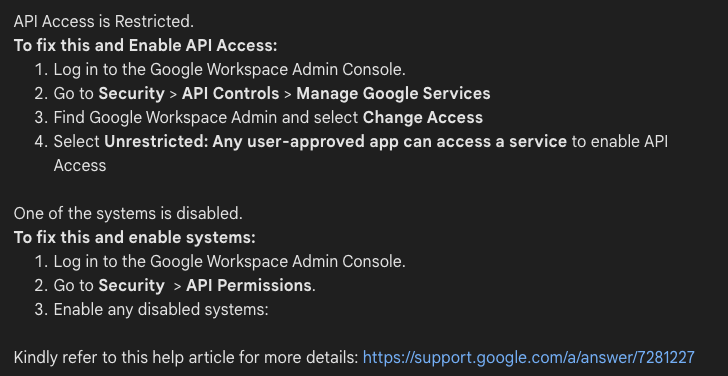
If Google sign-in to Securly is blocked and the message says API Access is Restricted, Google Workspace is preventing the API access required for single sign-on (SSO). This is different from a message that says the Securly app has not been trusted.
Allow API access in Google Workspace
- Sign in to the Google Workspace Admin console.
- Go to Security > API Controls > Manage Google Services.
- Find Google Workspace Admin and select Change Access.
- Select Unrestricted: Any user-approved app can access a service.
- Save the change, then try signing in to Securly again.
Note: Google Workspace menu labels can change. If you do not see these options, use the Admin console search for Manage Google Services.
If Google says one of the systems is disabled
- In the Google Workspace Admin console, go to Security > API Permissions.
- Enable any system shown as disabled.
- Try signing in to Securly again.
If the Securly app is not trusted
If the error instead says the Securly application is blocked, untrusted, or not configured for access, follow How to enable API access for Securly in Google Workspace. That article explains how to add the specific Securly application under Google Workspace API controls and mark it as trusted.
Reference
For more information, see Control which third-party and internal apps access Google Workspace data in Google Workspace Admin Help.