Classroom › How to for Teachers
What to Do When a Student is Off Task
When running a class with Securly Classroom, you may encounter students who aren't on task. Whether you observe this through their screen thumbnail or the title of a tab in Tab View, there are several options to help get students back to their assignments and engaged with your lesson.
1. Notify the Student to Get Back on Task
Sometimes, it’s as simple as letting a student know that you are aware they are not focused. If you are in a physical classroom, you can address them verbally. However, if you are teaching a remote or hybrid class, or if you prefer not to disturb other students, you can send the student a chat message.
To do this, click on the chat icon in the upper right corner of the student’s card. This will open the Chat interface, allowing you to message the student one-on-one.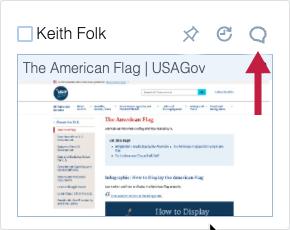
For more information on Chat, see this article.
If you prefer not to chat one-on-one, you can send a single message using the Announce feature. This will send a message that the student must acknowledge to continue using their device. Ensure you select only the student(s) you wish to send your announcement to before clicking the Announce icon.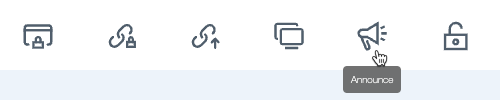
For more information on using Announce, see this article.
2. Monitor Students by Pinning Their Screens
If you have students who are prone to frequent distractions, you can keep a closer eye on them by pinning their screen thumbnail or list of tabs to the top of the list. Click the pin icon in the upper right area of the student’s card to do this.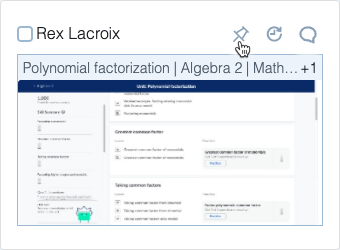
For more information on pinning a student, see this article.
3. Close Distracting Tabs
You can also help students focus by closing distracting tabs directly. To do this, click the site in Tab View or Device View, then click Close.
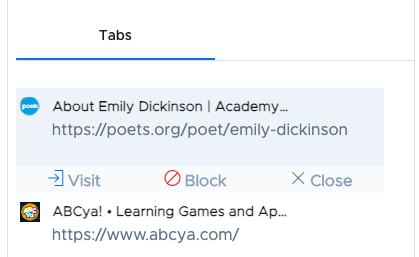
For more information on closing tabs, see this article.
4. Block Distracting Sites
If you want to not only close a tab with a distracting site but also block the site to prevent future distractions, click the site in Tab View or Device View, then click Block. This action will close the tab and add the site to the class's currently active blocklist.
5. Take Screenshots of Student Screens
If a student is having persistent issues with distractions, you can take screenshots of their screen for future reference from the History sub-menu.
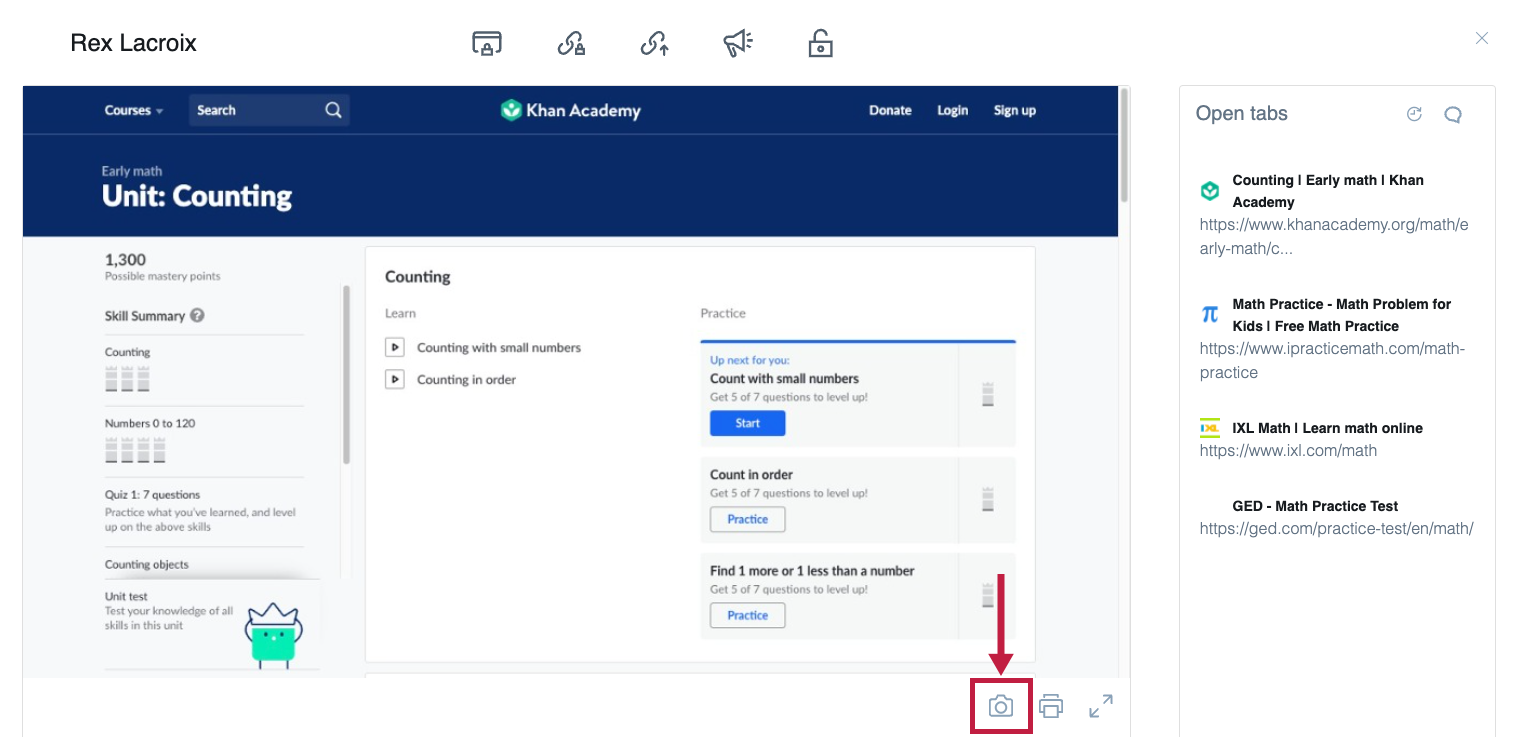
To save a screen, open Detail View by clicking the student’s screen thumbnail, then click the Camera icon below the student screen image.
For more information on saving student screens, see this article.